
You can open a GPX file by uploading it to a mapping app like Google My Maps, Gaia GPS, or gpx.studio—just drag and drop the file to view your route, track, or waypoints on a map. These tools display elevation, distance, and time data, often with interactive graphs and color-coded paths. Most work right in your browser, no install needed. For deeper analysis or offline use, try GPXSee or a dedicated GPS device. There’s more to discover once you get started.
TLDR
- Use a mapping app like Google My Maps, Gaia GPS, or Mapy.com to open GPX files by dragging and dropping them onto the map.
- View tracks with elevation graphs, distance details, and colorized speed or elevation data for better route analysis.
- Edit GPX files online with free tools like gpx.studio, Komoot, or Dawarich directly in your browser without installing software.
- Transfer GPX files to GPS devices via USB, BaseCamp, or apps like Garmin Connect for on-the-go navigation.
- Convert GPX to formats like KML or CSV using GPS Visualizer or QGIS for use in Google Earth or spreadsheet analysis.
What Is a GPX File? (And Why You’d Use One)?
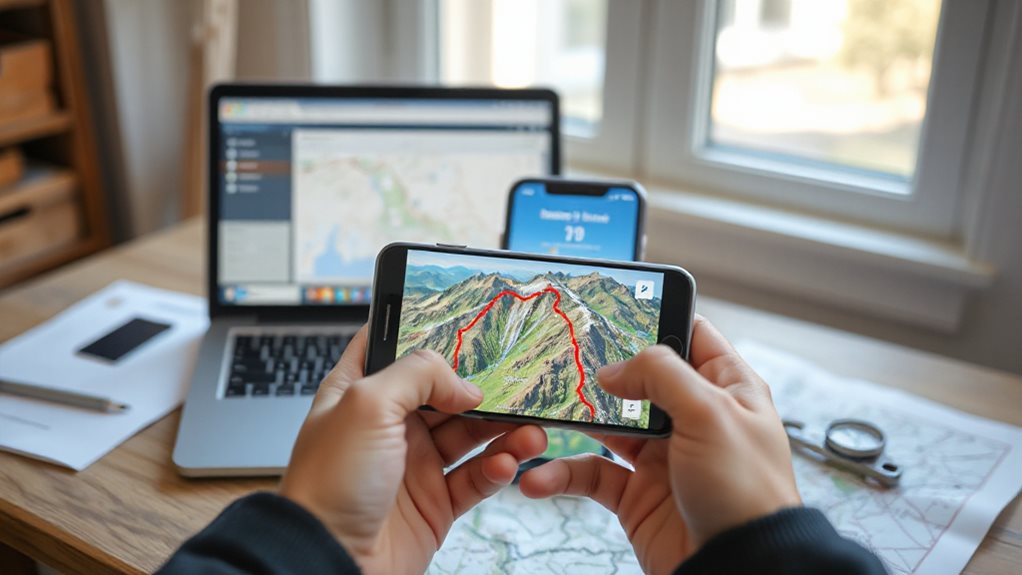
Let’s break down what a GPX file actually is and why you might need one.
It’s a GPS Exchange Format file, an open, XML-based standard for storing waypoints, routes, and tracks.
You can freely share it across devices and apps—perfect for hiking, cycling, or mapping excursions.
With just latitude and longitude, plus optional details like elevation or time, it gives you full control over your expedition, no restrictions.
Extensible format allows inclusion of advanced data like sensor readings or GPS signal details through extensions.
Open GPX Files in Mapping & Navigation Apps
You can easily open GPX files in mapping apps to see your route right on the map. Just import the file, and the app will display the track with key details like distance and elevation.
Whether you’re planning a hike or following a bike trail, these apps make route-finding simple and visual. Consider using a fish finder like the Dragonfly 4 Pro for GPS and sonar features when combining navigation with kayaking.
Track Visualization In Apps
Diving into your GPX file has never been easier, especially when you use the right mapping app to bring your route to life.
View tracks in detail, colorized by elevation or speed, and discover interactive maps with satellite or OpenStreetMap backgrounds.
Check elevation graphs to gauge difficulty, follow your GPS in real time, and get alerts near waypoints—giving you the freedom to steer confidently, anywhere.
Route Import Made Easy
Getting your GPX file into a mapping app doesn’t have to be complicated—most tools make it simple to bring your route from file to map with just a few clicks or taps.
Just open the app, import the file directly, and let it auto-process.
Whether you’re using Google My Maps, Gaia GPS, or Mapy.com, drag, drop, and go—your route appears, ready to discover.
Edit GPX Tracks With Free Online Tools
You can easily edit GPX tracks right in your browser using free online tools—no download or account needed.
Just drag points to adjust your route, split or merge segments, and add waypoints with a simple click.
These tools let you fine-tune your route visually, so you’re ready for your next hike, ride, or run.
Many kayak anglers also rely on built-in GPS to mark edited waypoints for accurate navigation.
Edit Tracks In Browser
Take control of your GPX tracks right in the browser with free online tools that make editing simple and precise.
You can drag points, add waypoints, or trim routes with ease.
Reverse direction, smooth traces, or update elevations effortlessly.
These tools let you tweak every detail—time, altitude, points—without installing software, giving you full freedom to perfect your route while staying in control.
Merge And Split Segments
Piece together your trek with ease by merging multiple GPX segments into a single, seamless track using free online tools.
Drag and drop files into Dawarich or Komoot, visualize routes, then choose smart or simple merge options.
Keep tracks separate or combine them fully.
Splitting works just as smoothly—extract sections freely.
You stay in control, no uploads needed, perfect for explorers who value flexibility and simplicity.
Add Waypoints Visually
Discover your route planning by adding waypoints visually, turning your GPX track into a detailed roadmap custom to your trip.
Click or right-click the map to drop points, then drag them freely to fine-tune positions.
Rename, recolor, or reorder waypoints with ease.
Use elevation profiles and basemaps for precision, and edit directly after importing GPX files—no restrictions, just freedom to shape your voyage exactly as you want.
Pick the Best GPX Software for Your Device
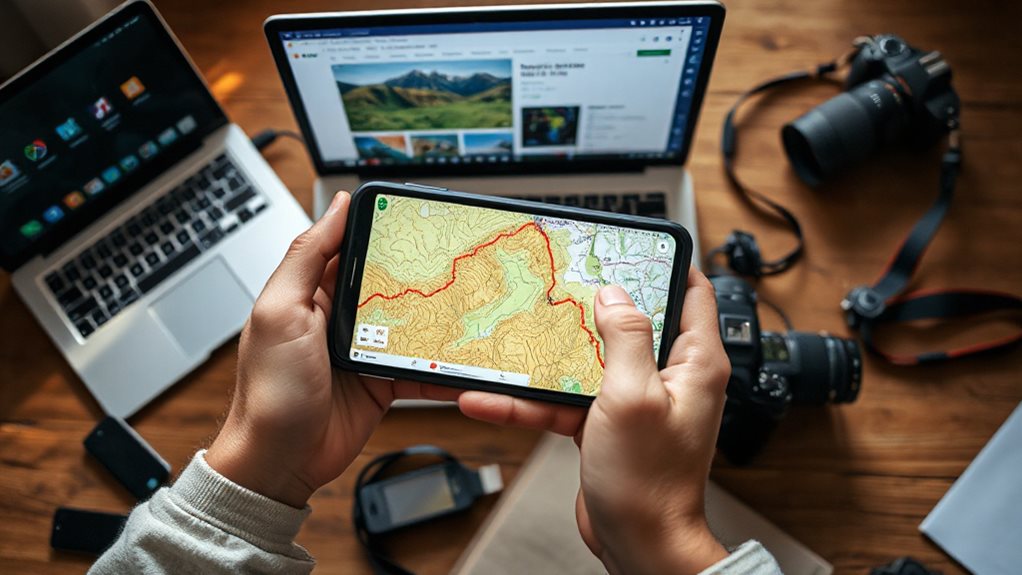
Finding the right GPX software doesn’t have to slow you down—once you match the tool to your device and needs, everything from route planning to analysis gets easier.
Use GPXSee on Windows, macOS, or Linux for offline maps, detailed graphs, and full format support. On Android, try GPX Viewer PRO for editing and maps. Or, go online with gpx.studio—free, open source, and ready in your browser. You can also repurpose an old smartphone as a dedicated GPS tracker to record routes and live locations using GPS tracking features.
Load GPX Files Onto Your GPS Device
Now that you’ve picked the right software, it’s time to get your GPX file onto your GPS device and ready for your next excursion.
Plug in your device, then use BaseCamp, direct USB transfer, or the Garmin Connect app to send the route.
Once synced, power on your unit, let it process, then check the map to confirm your route’s intact and wayfinding-ready.
Also verify your device’s power and settings before use, especially the battery voltage, to prevent interruptions.
Convert GPX to KML, CSV, or Excel
Ready to make your GPS data work across more platforms? Convert GPX to KML for Google Earth overlays, or to CSV/Excel for easy analysis.
Use free online tools like GPS Visualizer, desktop apps like QGIS, or command-line utilities like GDAL and GPSBabel. These preserve precision, elevation, time, and extensions—keeping your data accurate, flexible, and ready for exploration. Solar panels rely on light, not heat, so position them for best exposure to maximize conversion efficiency and charging rates for your devices with a photovoltaic cell focus.
Final Note
You’ve got this! Opening a GPX file is simple once you know your options. Use mapping apps, online tools, or GPS devices to view, edit, or steer your route. Whether you’re converting formats or syncing to a device, the right software makes it smooth. Pick what fits your needs, follow the steps, and you’ll be exploring your tracks in no time—no hassle, just clear, helpful results right when you need them.


